



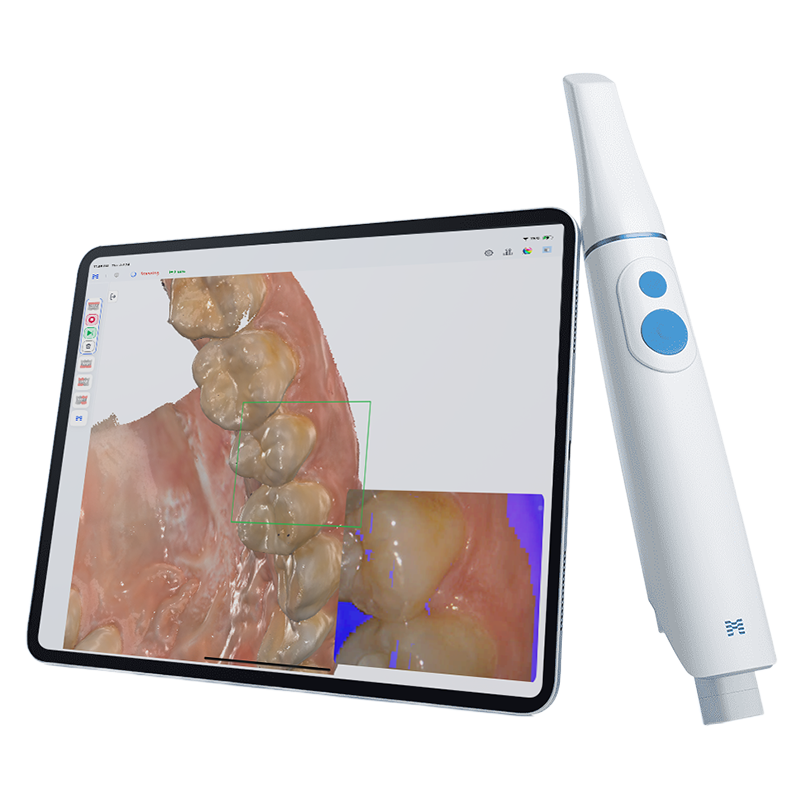
Introducing the Medit i900 Mobility (i900M). i900 Mobility brings true iPad-native scanning to dentistry. Experience the freedom to scan anytime, anywhere, without compromise.
Key benefits
-
Platform versatilityUse iPad, PC, or Web—whichever suits your clinic environment best.
-
Experience True MobilityScan across multiple chairs, rooms, and even in pop-up clinics with true mobile flexibility.
-
Fast Setup, No DowntimeOpen the app, start scanning. No OS updates or driver headaches.
-
Remote capabilitiesMove freely between setups. One scanner works everywhere.
고객 후기
FAQ: 자주 묻는 질문
Frequently Asked Questions
Question 1
Wireless Connection (Direct Connection via Router)
- Launch Medit Link Express or Scan for Clinics.
- Insert the battery and power on the scanner—the device will be detected automatically.
- Select the scanner’s serial number on the screen:
- Scan for Clinics: Automatic connection upon selection.
- Medit Link Express: Wi-Fi password must be entered once during the first setup.
Wired Connection (Using the Hub)
- Launch Scan for Clinics on your laptop.
- Insert the battery and power on the scanner—the device will be detected automatically.
- Select the serial number to complete the connection.
Question 2
A Wi-Fi router is required for Direct Connection.
- Recommended specification: Wi-Fi 6E router.
Wi-Fi 6E utilizes the 6GHz band, offering higher speed and a more stable wireless connection compared to previous Wi-Fi standards.
Question 3
- On PC or Mac, check Wi-Fi connection properties for protocol and frequency.
- The easiest way: Check the label on your router—it usually lists the model name and supported Wi-Fi standards (e.g., Wi-Fi 5, Wi-Fi 6, Wi-Fi 6E, AX1800).
- Alternatively, search the model number online for full specifications.
- For more technical details, check your device’s Wi-Fi settings for terms like 802.11ac (Wi-Fi 5) or 802.11ax (Wi-Fi 6).
Question 4
Not necessarily, but we recommend using at least a Wi-Fi 6 or Wi-Fi 6E router for better stability and faster data transmission. This ensures a seamless scanning experience without interruptions.
Question 5
Yes. Existing i900 tips are fully compatible with i900 Mobility (i900M).
Question 6
The i900 Mobility is equipped with two physical buttons, each serving different purposes:
- Top Button (Scan Button): Press once to start or stop scanning. Additional functions can be triggered by double-pressing, triple-pressing, or long-pressing. These actions can be customized in the settings menu for user convenience.
- Bottom Button (Control Button): This button allows you to easily manipulate the scanned data—rotate, move, zoom in/out—without a mouse or touchscreen. Its intuitive design makes it possible to review and adjust scans directly from the scanner, improving workflow efficiency.
Question 7
Yes. You can remove the hub and switch to Direct Connection via a Wi-Fi router at any time.
To switch back, reconnect the hub to the laptop, and the scanner will automatically revert to the wired connection mode.